Network teams often manage Wi-Fi, VPN, and admin access as separate silos. Each entry point comes with its own credentials, policies, and monitoring. This fragmentation increases complexity and creates gaps in visibility. As more users connect from remote locations and more devices go unmanaged, enforcing consistent access control becomes nearly impossible.
This article serves as a comprehensive guide for integrating Cisco Meraki with Microsoft Azure AD and Microsoft Entra ID, both provided by Microsoft as leading identity management solutions. The Azure Meraki integration brings unity to this fragmented model. By using Azure Active Directory as the central identity authority and Meraki as the access enforcer, organizations can apply the same user policies across VPN, wireless access, and administrative tools. This reduces risk, simplifies IT operations, and improves the user experience.
Meraki and Azure Active Directory (Azure AD) are foundational technologies for modern enterprise IT. Meraki delivers a cloud-managed networking solution that simplifies the deployment and management of wireless, switching, and security infrastructure across distributed environments. Azure AD, Microsoft’s cloud-based identity and access management service, empowers organizations to centrally manage user identities and control access to applications and resources.
By integrating Meraki with Azure AD, organizations can unify their network and identity strategies. This integration allows users to access wireless networks, VPNs, and administrative tools using their Azure AD credentials, streamlining authentication and access management. The result is a secure, scalable solution that makes it easier to manage users, enforce policies, and provide seamless wireless access across all sites. Leveraging Azure AD as the identity backbone for Meraki networks ensures that only authorized users can connect, while IT teams gain centralized control over both network and identity resources.
Integrating Meraki with Azure AD unlocks a host of benefits for organizations seeking to enhance security, streamline management, and improve the user experience. With Azure AD integration, IT teams can manage all user identities and access permissions from a single, cloud-based platform, reducing administrative overhead and minimizing the risk of unauthorized access.
With identity-first access in place, every authentication request, regardless of where it originates, is evaluated against the same source of truth. In the Azure Meraki model, Azure AD handles the identity logic while Meraki enforces the access outcome.
This means that:
When configuring SSID authentication methods in the Meraki dashboard, it’s important to consider the association requirements. These requirements define how clients are authenticated to the wireless network, whether using enterprise (802.1X), local authentication, or LDAP integration. Properly setting association requirements ensures secure and seamless access for users based on your chosen authentication method.
Meraki doesn’t store or manage identities itself. It delegates that role to Azure AD. This separation improves flexibility, reduces overhead, and supports Zero Trust policies by verifying every user and device at the edge.
There are three main access areas in a Meraki environment where Azure AD integration makes an impact:
Each access point relies on Azure AD to validate who is connecting and applies Meraki’s native tools (like VLAN tagging or access policies) to enforce the connection rules. This creates a strong link between user identity and network access behavior.
Choosing the right protocol depends on the type of access you’re securing. Azure Meraki supports both SAML and RADIUS-based authentication through Azure AD. Here’s how to decide:
SAML offers a cleaner, browser-based experience and supports group-based roles for dashboard access. RADIUS is more traditional and supports a wide range of client devices but requires additional setup, including certificate management and group attribute mapping.
Both protocols can be layered with Azure Conditional Access and Duo MFA to strengthen security policies. Meraki doesn’t care which method you use—it simply needs to receive an allow or deny response from your identity service.ny response from your identity service.
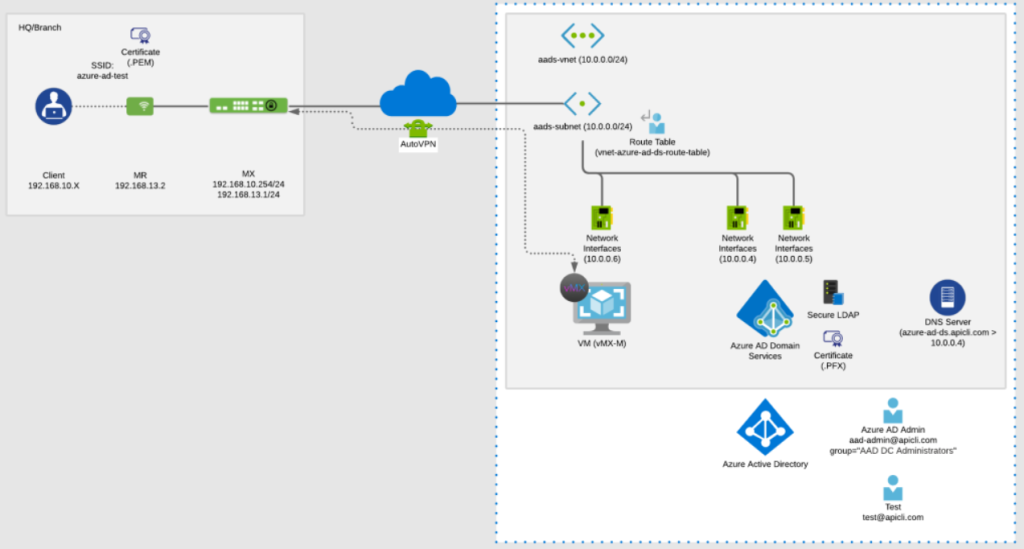
Here’s a basic example of how Wi-Fi access works with Azure Meraki:
For SAML-based authentication, such as when integrating Meraki Dashboard with Azure AD (Microsoft Entra ID), it is essential to configure a unique Reply URL—also known as the Assertion Consumer URL or Consumer URL—in Azure AD. This URL must be copied from the Meraki Dashboard and set as the Reply URL in the Azure AD SAML application. The Reply URL acts as the endpoint for SAML assertions and is critical for the authentication process to function correctly. Additionally, the SAML configuration requires specific attributes to be included in the SAML response to ensure successful authentication.
To validate the SSO configuration and confirm the authentication flow works as expected, use a test user account to sign in and verify that the integration between Azure AD and the Meraki Dashboard is operating properly.
The same flow applies to client VPN authentication. In that case, the Meraki MX appliance serves as the VPN gateway, and authentication is handled through a SAML broker that connects back to Azure AD.
This approach ensures consistent access policies across all network surfaces. Every connection is tied to a verified identity and subject to cloud-enforced controls.
The Azure Meraki model supports Zero Trust security by enforcing identity verification at every connection point. Users and devices must prove who they are, meet security posture requirements, and match access policies before entering the network.
With Meraki SSIDs, you can:
With VPN, you can:
This layered access control ensures that users are continuously validated. Access isn’t just granted once but reevaluated with every session, providing ongoing protection against credential abuse or policy violations.
The Meraki Dashboard is a powerful control plane for your entire network. Protecting administrative access is just as critical as securing user connectivity. With Azure Meraki integration, administrators can log in to the Dashboard using their Azure AD accounts through SAML SSO, leveraging Microsoft Entra ID as the identity provider and managing the configuration within Microsoft Entra.
Here’s how it works:
When an admin signs in, they are redirected to Microsoft Entra ID for authentication, which can include Conditional Access and MFA.
This setup ensures that only approved users with verified roles and security posture can administer your Meraki networks. It also allows centralized control of role assignments through Microsoft Entra ID, reducing risk and streamlining offboarding.
A national retailer with over 50 branch locations recently deployed Azure Meraki integration to secure their wireless, remote access, and admin portals. Before the deployment, each site used pre-shared keys for Wi-Fi, standalone VPN credentials, and locally managed dashboard accounts.
After transitioning to Azure AD:
The results included faster onboarding, reduced helpdesk tickets, and better access control reporting. When employees leave, access to all network surfaces is revoked instantly through Azure AD, without touching the Meraki configuration.
This deployment example can serve as a reference for similar multi-site rollouts. For step-by-step instructions and advanced configuration options, consult official documentation and relevant blog posts. For advanced setups, the Meraki Authentication Token can be used to integrate vMX appliances directly into an Azure environment.
To optimize your Azure Meraki deployment, consider the following tools and settings:
These enhancements increase visibility, reduce misconfigurations, and improve your overall security posture.
To maximize the value of your Meraki and Azure AD integration, it’s essential to follow best practices that ensure security, scalability, and ease of management. Start by configuring Azure AD as the primary identity provider for Meraki, enabling SSO for all supported services. This centralizes authentication and allows you to leverage Azure AD’s robust security features.
Networks that rely on device IPs, MAC addresses, or static VLANs cannot adapt to today’s mobile, hybrid environments. Azure Meraki shifts that model to one built around verified users, trusted devices, and centralized access policies.
By using Azure AD as the identity engine and Meraki as the access fabric, organizations can build networks that are more secure, easier to manage, and better aligned with Zero Trust principles.
Stratus Information Systems helps enterprises design and implement secure, scalable Meraki networks integrated with Azure AD. From Wi-Fi to VPN to dashboard controls, we deliver identity-driven access solutions that work from Day One.
Ready to unify your wireless and identity strategy? Talk to Stratus about Azure Meraki integration today.