Resetting a Cisco router might seem like a daunting task, but with the right guidance, anyone can do it. Whether you’re troubleshooting a network issue or preparing to reconfigure your device, knowing how to reset a Cisco router can save you a lot of time and hassle. This guide will walk you through the different methods to reset your Cisco router and explain why and when you might need to do so. By breaking down the steps into simple, manageable pieces, we aim to make the process clear and straightforward.
There are several reasons you might need to reset router to factory default configuration. One of the most common reasons is to troubleshoot connectivity issues. If your router is experiencing persistent problems, resetting it can help clear any temporary glitches or misconfigurations in the current running configuration. Some issues may be related to hardware faults, which sometimes require a reset to restore normal operation. Resetting the router essentially gives it a fresh start, potentially resolving issues that could not be fixed by simply rebooting the device. When performing a reset, it is important to ensure stable power to the hardware to avoid corruption during the process.
Another reason to reset a Cisco router is to clear forgotten passwords. If you have lost access to the router’s configuration due to a forgotten enable password or secret password, resetting the router can help you regain access. This is particularly important for maintaining security and ensuring that unauthorized users cannot make changes to your network setup.
Lastly, resetting your router to default factory settings can be necessary when repurposing or selling the device. This ensures that all personal and sensitive configuration files, including IP addresses and cryptographic features, are wiped clean. Resetting the router does not affect the software image (such as Cisco IOS) stored in flash memory, so the core software remains intact. Returning the router to its original factory defaults guarantees that no remnants of the previous configuration remain, making it safe for new use.
Not all reset methods are supported on every Cisco router model, so users should check their device’s documentation to confirm compatibility.
Before you reset a Cisco router, it’s important to understand the various configuration modes. These modes, which are part of the Cisco IOS software environment, determine how changes are applied to the router. The main modes you’ll encounter include user EXEC mode, privileged EXEC mode (also known as enable mode), and global configuration mode. Each mode provides different levels of access to the router’s configuration settings.
User EXEC mode is the default mode when you first access the router. It provides limited access and allows you to view basic information but not make any significant changes. To reset the router, you typically need to enter privileged EXEC mode, also called enable mode. This mode, accessed using the enable command, allows for more comprehensive control over the router’s settings, including the ability to execute reset commands.
Global configuration mode allows you to make changes that affect the entire router config. It is entered from privileged EXEC mode and is essential for configuring settings that affect the router’s overall operation, such as setting the hostname. Understanding these modes is crucial because each reset method requires you to navigate through them to execute the necessary commands. When you save changes, remember that saving the running configuration will overwrite the startup configuration.
Proceed to the next steps only after confirming you are in the correct mode. For more details on configuration modes and commands, refer to official Cisco documentation.
Understanding the configuration register is essential when you need to perform a factory reset on a Cisco router. The configuration register is a special setting that determines how your router boots and which configuration files it loads. By adjusting the configuration register, you can control whether the router loads its saved startup configuration file or boots up with a blank configuration—an important step when you want to restore factory default settings.
The most common configuration register values are “` 0x2102
 (the default setting) and ```
0x2142
(used to ignore the startup configuration). When the configuration register is set to “` 0x2102
, the router boots normally and loads the startup configuration file from NVRAM, applying all previously saved settings. However, if you set the configuration register to ```
0x2142
, the router will bypass the startup configuration on the next reboot, allowing you to access the device without being prompted for the existing enable password or other custom settings.
To perform a factory reset using the configuration register, start by connecting to your Cisco router via a console cable and entering privileged mode with the “` enable
 command. Next, enter global configuration mode by typing ```
configure terminal
. Here, you’ll set the configuration register to ignore the startup configuration by entering “` config-register 0x2142
. After this, reload the router with the ```
reload
command. When the router reboots, it will present you with the initial configuration dialog, giving you the option to configure the device from scratch or enter a blank configuration.
At this point, the router’s running config will be empty, but the original startup configuration file remains in NVRAM. If you want to permanently erase the existing configuration, use the “` write erase
 command, which deletes the startup configuration file. You can then save your new configuration with ```
copy running-config startup-config
once you’ve completed your setup.
It’s important to verify your configuration register setting after the reset. Use the “` show version
 command to confirm the current configuration register value, and ```
show running-config
to ensure the router is running with a blank configuration. Once you’ve finished the reset and any initial setup, restore the configuration register to its default value by entering “` config-register 0x2102
 in global configuration mode. Save your changes and reload the router to ensure it boots normally with your new settings.

Keep in mind that some advanced settings stored in ROMMON mode, such as ```
warm-reboot
or custom memory allocations, are not affected by the standard factory reset process. If you need to reset these, additional steps in ROMMON mode may be required.
By mastering the use of the configuration register and understanding the relationship between running config and startup config files, you can confidently reset your Cisco router to factory defaults, bypass existing passwords, and prepare the device for a fresh deployment. This process is essential for network administrators who need to restore routers to a known state, whether for troubleshooting, repurposing, or secure decommissioning.
Resetting a Cisco router can be accomplished using various methods, each suited to different situations.
The CLI (Command Line Interface) within the Cisco IOS environment is the most common method for resetting a Cisco router. To begin, you’ll need to connect to the router using a console cable and access the CLI through a terminal emulator. If SSH is enabled, you can also use SSH for secure remote CLI access. Once connected, you’ll enter privileged EXEC mode by typing enable and entering the enable password. From here, you can use the reset command to initiate the reset process. This method is ideal for those who are comfortable with command-line operations and have access to the necessary passwords.
In the CLI, you can also use specific commands to reset different parts of the router. For example, if you want to clear the current running config without affecting the startup configuration file, you can use the write erase command followed by the reload command. This will clear the current settings and reload the router, allowing you to start with a clean slate. When you save the running configuration, it will overwrite the existing startup configuration.
To configure the router after a reset, enter global configuration mode and use router config commands such as setting the hostname (e.g., hostname BranchRouter). You can verify these changes by checking the system log to ensure the configuration was applied successfully.
Before attempting to access ROMmon mode, ensure the router is powered on and the power supply is stable to avoid corruption or unexpected shutdowns. Accessing ROMmon mode typically requires a console connection to the router. ROMmon mode, also known as ROM monitor, is a low-level operating mode used for troubleshooting and recovery. To access ROMmon mode, you need to interrupt the router’s boot process by sending a break sequence (such as Ctrl+Break) during initialization. This action halts the normal boot and brings you to the ROMmon prompt, indicating you are in recovery mode.
Once you see the rommon prompt, you can proceed with password recovery or reset steps. For example, the confreg command can be used to change the running config register, which controls how the router boots. By setting the configuration register to bypass the startup configuration, you can reset the router to factory defaults and regain access.
ROMmon mode can also be used for software recovery if the IOS image is corrupted or missing. For more detailed ROMmon procedures, refer to Cisco’s official documentation.
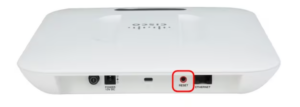
Some Cisco routers come with a physical reset button, which is a hardware feature designed for quick and easy resets. However, not all Cisco router models are supported with a physical reset button, so check your device specifications before proceeding.
If your router supports USB, you can back up the configuration to a USB drive before performing a reset. To use the hardware reset method, locate the reset button, often found on the back of the router. Using a small, pointed object like a paper clip, press and hold the reset button for about 10 seconds. This will initiate the reset process, returning the router to its factory settings.
The reset button method is ideal for those who prefer a hands-on approach or when you don’t have access to the router’s CLI or ROMmon mode. It’s a simple and effective way to restore the router to its original factory defaults without needing any technical knowledge or special commands.
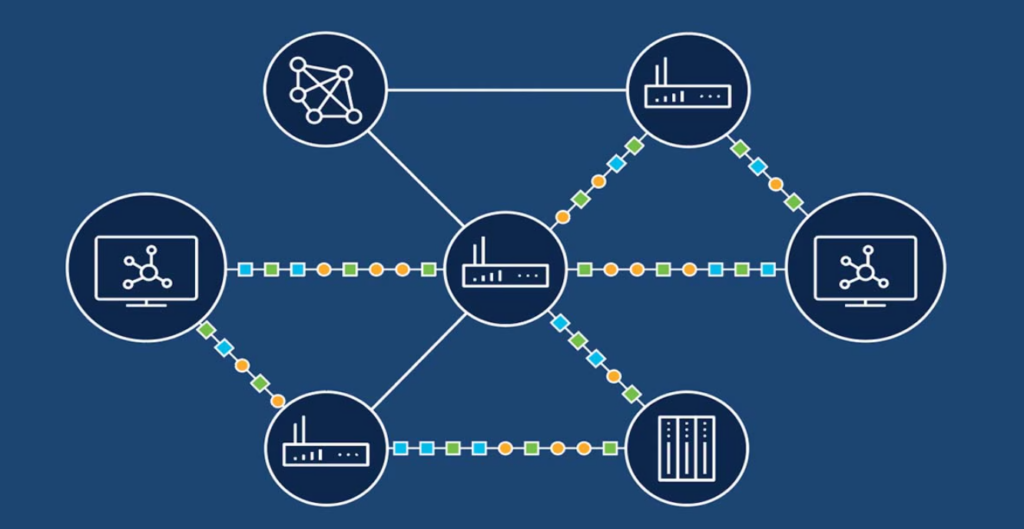
Before you reset a router, it’s crucial to consider the potential impact of this action on your network. Resetting the router will erase all current running config, including IP addresses, passwords, and any custom settings you have applied. Make sure to back up your current running config file so you can restore your settings if necessary. This backup will ensure that you don’t lose important configurations and can quickly return to your previous setup if needed. After performing the reset, check the system log to verify that the reset process completed successfully and to identify any issues that may have occurred.
When saving your configuration after making changes or recovering from a reset, be aware that saving will overwrite the previous startup configuration. Use the appropriate commands to ensure your new settings are properly stored.
Another important precaution is to understand the country’s laws and compliance requirements related to your system initial configuration dialog. Some settings on your Cisco router, such as cryptographic features and specific security protocols, might be subject to legal regulations. Ensure that you are aware of and adhere to these laws when resetting and reconfiguring your router.
Finally, consider the potential downtime and its impact on your operations. Resetting a Cisco router can take several minutes, during which your network connectivity may be interrupted. Ensure stable power during the reset process to prevent corruption or incomplete resets. Plan the reset during a maintenance window or at a time when network usage is minimal to avoid significant disruption. Communicating with users about the planned reset and potential downtime can help manage expectations and reduce frustration.
For more detailed procedures, compliance, and security best practices, refer to the official Cisco documentation and command references.
With the right knowledge and preparation, resetting a Cisco router can be straightforward. Reasons for doing that can range from troubleshooting connectivity issues to repurposing your device. By understanding these methods and following the steps outlined in this guide, you can confidently reset a Cisco router.