Nowadays, real-time network visibility is no longer optional—it’s essential. Cisco Meraki delivers this through its intuitive cloud-managed dashboard, offering IT teams a clear and immediate view of their entire network. At the heart of this visibility is the Meraki topology feature, a powerful visual tool that maps out the connections between devices across your infrastructure. Cisco Meraki topology icons can be used in network diagrams to represent various devices and their connections, helping people—including IT teams and stakeholders—understand and manage the network.
What makes this feature even more effective is its use of Meraki icons—visual indicators that represent each network element, from switches and access points to firewalls and client devices. These icons do more than just decorate a map; they communicate the health, status, and performance of your network at a glance. There is a demand for Cisco Meraki shapes in various diagramming applications, indicating their importance in network design. Meraki icons are also suitable for adding to dashboards and app directories, and can be used in documentation, presentations, and network management tools. This article takes a detailed look at Meraki topology icons, breaking down what each one means, how they support network management, and how IT teams can use them to stay ahead of issues before they disrupt operations.
Meraki icons can enhance the visual representation of network infrastructure in various applications.
In today’s fast-paced IT landscape, understanding the structure and health of your network is more critical than ever. Network visualization—the art and science of mapping out devices, connections, and data flows—empowers IT teams to see their infrastructure in a whole new light. This is where Meraki topology icons shine, offering a clear, standardized way to represent every Cisco Meraki device and connection within your environment.
Traditionally, tools like Visio were the go-to for building static network diagrams. While Visio provided a foundation for documenting network layouts, its manual nature and lack of real-time updates made it less ideal for today’s dynamic, cloud-managed networks. As organizations grow and networks become more distributed, the need for live, interactive topology maps has become paramount.
Meraki topology icons bridge this gap by delivering instantly recognizable symbols for switches, wireless access points, firewalls, and more—directly within the Meraki Dashboard. These icons don’t just make diagrams look professional; they make them actionable, allowing IT teams to quickly interpret network status, spot issues, and plan changes with confidence. By moving beyond static diagrams and embracing real-time visualization, organizations can ensure their networks are not only easy to understand, but also easy to manage and scale..

Meraki topology provides a live, graphical representation of your network’s structure, helping teams visualize device relationships and traffic flow. It’s automatically generated within the Meraki Dashboard, requiring no manual setup. Devices like Meraki MX firewalls, MS switches, and MR access points are displayed in real-time, complete with current status and connection paths.
Users often seek to implement Cisco Meraki topology icons in diagramming tools like Visio and Lucid Chart. Lucid Chart is currently a popular alternative for creating network diagrams compared to Visio. In many diagramming tools, some applications allow users to import Meraki icon shapes or stencils directly from a url, making it easier to access the latest resources.
This dynamic map simplifies everything from troubleshooting to capacity planning. Rather than hunting through spreadsheets or CLI logs, admins can instantly see how a device fits into the bigger picture. Whether managing one site or thousands, Meraki topology turns complex infrastructures into actionable insights. And when things go wrong, topology icons highlight problems immediately—saving time and reducing downtime.
The Meraki Dashboard uses a consistent set of Meraki icons to represent key hardware categories. Switches are typically displayed as stacked rectangles, access points as signal waves, security appliances as shields, and clients as small device outlines. Each icon is clickable, linking to more detailed device data, including port usage, firmware status, and uptime.
Color is just as important as shape. A green icon indicates a healthy online device. Amber means a warning—perhaps high utilization or packet loss. Red flags a serious problem such as a disconnected or unresponsive device. These colors allow admins to prioritize fixes without diving into diagnostics manually.
Topology icons also reflect status in real-time. If a cable is unplugged, a link goes down, or a device reboots, the icon updates instantly. When paired with other alerts and logs in the Meraki Dashboard, these visual cues make it easier to detect loops, isolate bottlenecks, and ensure optimal routing paths—all from one intuitive screen.
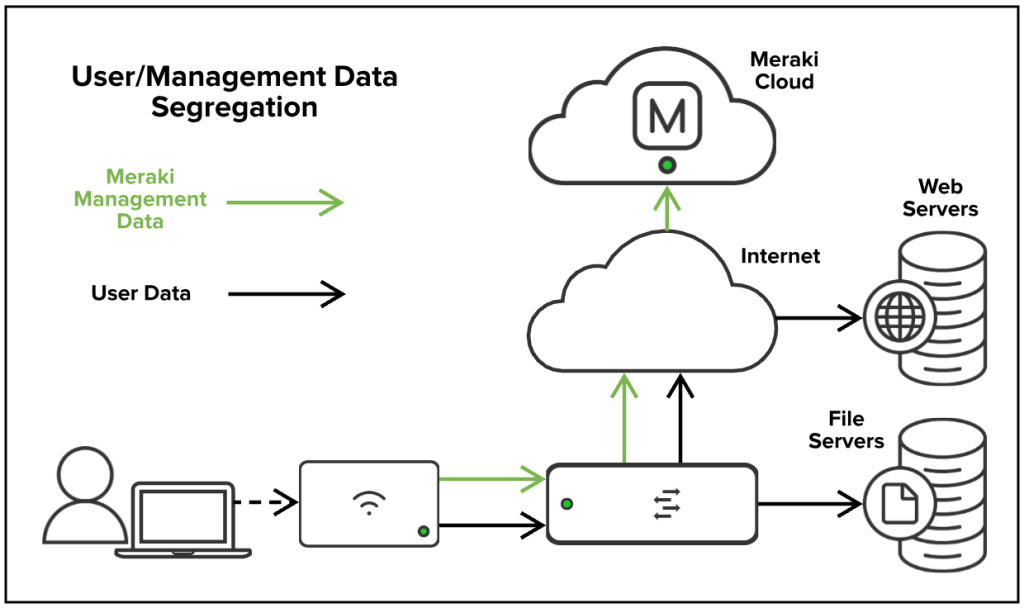
Meraki topology icons give IT teams the ability to identify issues quickly, minimizing the time between detection and resolution. For instance, spotting an amber switch icon in a branch office can prompt proactive investigation before a user notices latency. Similarly, seeing a red icon for an uplink connection could explain why a portion of the network is unreachable. Meraki topology icons can also help visualize WAN connections and highlight the integration of WAN technologies for enhanced network connectivity.
These icons also aid in capacity planning. If you consistently see APs at max load or switch ports saturated, it’s a sign your network may need expansion. Since topology icons display real-time traffic and device status, they allow for more accurate, data-driven decisions around scaling and upgrades. For security monitoring, topology icons make it easy to trace unauthorized devices and highlight anomalies in traffic flow or device behavior. SD-WAN is a key technology component within the Meraki platform, providing secure, reliable, and optimized wide-area networking solutions for modern, flexible workspaces.
Several recurring issues can be identified through Meraki topology. A red switch icon often indicates a complete disconnection or failed firmware update. Amber APs could mean degraded performance or radio interference. Sometimes, you’ll see grayed-out icons, which typically point to offline devices or unreachable endpoints.
Topology icons also expose misconfigurations. For example, if you see clients connected directly to uplink ports rather than through access switches, you may have missed VLAN tagging or trunk settings. If a device goes from green to amber repeatedly, it may be rebooting due to power issues or overheating. These visual clues help prevent small problems from snowballing into major outages.
One of the best features of the Meraki topology interface is its ability to filter and customize views. Admins can isolate devices by type—such as showing only switches or APs—or filter by network tags and geographic locations. This is especially helpful in large, distributed environments where hundreds or thousands of nodes exist across multiple regions.
With customization, you can declutter the view to focus on the most relevant data. For example, a network engineer troubleshooting a VoIP issue may filter the topology to only show APs and associated clients. In a global enterprise, teams can zero in on sites that are currently facing alerts, allowing them to act fast and avoid distractions from healthy zones.
To get the most out of Meraki topology icons, IT teams should regularly monitor their dashboard and set up custom alerts for color changes or disconnections. Use tags to group similar devices and create logical topologies that reflect real-world roles and responsibilities—such as “Retail APs” or “Head Office Switches.”
It’s also wise to integrate topology views with other Meraki tools like Network-Wide Client View and Meraki Health. By cross-referencing icon status with client behavior, traffic analytics, and policy enforcement, you’ll gain a much deeper picture of how your network operates—and where improvements are needed. Regular audits using the topology map can also ensure no shadow devices or orphaned endpoints are lurking in your infrastructure.
The topology map isn’t just a visualization tool—it’s a diagnostics powerhouse. If a device goes red, simply click its icon to access real-time logs, connectivity history, and port-level statistics. You can immediately trace upstream and downstream links to see if the problem is local or network-wide.
Common workflows include tracing back an offline AP to its switch port, verifying PoE delivery, or identifying where DHCP handoffs are failing. In minutes, Meraki icons can help you resolve what used to take hours with manual tracing and command-line debugging. This is especially powerful in remote environments where IT teams can’t physically inspect hardware.
Meraki topology icons are more than just graphics—they’re real-time indicators that transform the way IT teams manage and monitor networks. By offering instant insight into connectivity, performance, and device health, these icons streamline operations and support a proactive approach to network management.
Whether you’re running a small business or managing global enterprise infrastructure, leveraging Meraki topology can dramatically improve visibility, speed up troubleshooting, and simplify growth planning. Ready to elevate your Meraki deployment? Contact Stratus Information Systems to learn how we can help you harness the full power of Cisco Meraki tools.