Identity is now one of the most important elements of network security. Every connection, every login, and every wireless session needs clear attribution. Modern environments depend on accurate identity mapping to enforce policy, reduce risk, and support compliance. When networks span multiple sites and hundreds or thousands of devices, directory integration becomes a central part of keeping access under control. Active Directory services provide centralized identity and access management, enabling organizations to efficiently manage user authentication and permissions across distributed environments.
Cisco Meraki offers a streamlined and scalable way to connect wireless, wired, and VPN access to Active Directory (AD). The combination allows administrators to maintain a single identity source while using modern cloud-managed tools to track activity, apply policies, and secure access. A strong Meraki AD integration plan provides consistency across all networks while keeping management simple.
This guide explains how to design, deploy, and maintain Meraki Active Directory authentication across your environment. It covers technical foundations, practical workflows, best practices, and common pitfalls to avoid. Administrators and users access Active Directory for authentication and policy enforcement, ensuring secure and seamless user management aligned with organizational requirements. Everything is written for engineers who need a clear and reliable approach that fits real-world production environments.
Identity allows networks to match activity to real users. Once the network knows who someone is, it can apply rules that reflect their role, department, location, or security level. With Meraki wireless authentication, wired policies, and VPN access tied back to Active Directory, organizations gain a more complete picture of what is happening and who is doing it. Domain users are authenticated and managed through these identity controls, ensuring that access and permissions are consistently enforced.
The value extends beyond convenience. Directory-driven policies support access segmentation, secure onboarding, and audit trails. They limit exposure when credentials are compromised and streamline remediation when employees change roles. Windows authentication enables seamless sign-in for users in Active Directory environments, supporting secure and efficient access for domain users. With a consistent identity source, networks avoid scattered policy logic and unpredictable behavior.
Cisco Meraki strengthens this foundation by allowing identity controls to live in one cloud-managed platform. Meraki cloud authentication is an option for simple environments, but most organizations prefer to integrate with established directory structures. This keeps user management aligned across applications, workstations, and the network.
Meraki appliances use a combination of logon information and directory queries to match user activity to AD identities. These directory queries are sent to the directory server, specifically the active directory server, which handles authentication and provides group membership information. The process works across MX security appliances, MR access points, and VPN services. While the implementation varies slightly per use case, the underlying model stays the same.
Meraki MX appliances read Domain Controller logon events and link usernames to device IP addresses. When a user logs in to a domain-joined workstation, the Domain Controller records the event, including the specific computer involved in the logon. The MX retrieves these records and uses them to identify which user is associated with which device. This enables user-based firewalling and group policy enforcement for wired networks.
Once the Cisco Meraki MX knows a username, it queries Active Directory through secure directory protocols using an LDAP query to retrieve group membership details. Group membership remains the backbone of Meraki AD authentication because it defines which policies apply. The MX stores this information locally so group-based rules can be applied without delay.
After identity and group data are combined, Meraki appliances apply group policies during each session. These policies can include firewall rules, content filters, bandwidth limits, VLAN assignments, or wireless access controls. With proper configuration, policy changes in Active Directory reflect automatically across Meraki networks.
For a successful Active Directory Cisco integration, it is essential to follow procedures and adhere to the following guidelines to ensure all prerequisites are met and the environment is properly prepared.
Strong Meraki AD integration begins with proper preparation. Many identity issues arise not from Meraki itself, but from directory settings or missing prerequisites.
The MX must be able to communicate with every Domain Controller that handles log-ons for the site. This requires correct routing, VLAN placement, and firewall permissions. In multi-site environments, the MX may use VPN paths to reach remote Domain Controllers. If reachability is inconsistent, identity mapping will fail.
Active Directory needs to store the correct logon records so the MX can extract them. This means enabling logon auditing on Domain Controllers. Without these logs, the MX cannot determine who is using each device.
When secure directory queries are required, certificates must be configured on Domain Controllers. Certificates need X.509 v3 format, proper Subject Alternative Names, and server roles suitable for authentication. These certificates also support Meraki WiFi certificate authentication when wireless clients use certificates instead of passwords.
The Global Catalog server is a foundational component in any robust Active Directory integration, especially when working with multi-domain environments. Acting as a central repository, the Global Catalog holds a partial replica of all objects within the Active Directory forest, enabling rapid directory searches and efficient authentication processes across domains.
To configure a Global Catalog server, start by ensuring your server is running Windows Server with the Active Directory Domain Services role installed. Designate the server as a Global Catalog by enabling the appropriate setting in the Active Directory Sites and Services console. For optimal integration, the Global Catalog server should be configured to listen on port 3268 for standard LDAP queries and port 3269 for secure LDAPS queries. Securing these communications is critical—install a valid SSL certificate on the server to protect directory data in transit.
In environments with multiple domains, it’s best practice to deploy at least one Global Catalog server per domain. This ensures that directory queries and authentication requests are handled efficiently, reducing latency and improving reliability for all Active Directory integration points, including Cisco Meraki appliances. Proper configuration of the Global Catalog server streamlines access to directory information and supports seamless integration across your network infrastructure.
The Meraki dashboard provides a clear workflow for linking identity services with network policies. In some cases, further configuration may be necessary for advanced scenarios or specific network requirements.
Administrators enter the domain name, controller IP addresses, and credentials in the MX configuration. Credentials must allow directory queries but do not require domain-wide administrative access. If directory queries are routed through a proxy server, proxy authentication credentials may also be required during setup. It is best to provide a dedicated service account with limited privileges.
Once AD integration is configured, you can apply identity-driven rules to VLANs, SSIDs, or wired ports. Authentication is performed against the configured AD domain, ensuring that user access is validated through your enterprise’s directory services. Meraki AD integration supports splash-based login in some cases, while background identity mapping handles wired authentication automatically.
The dashboard allows administrators to pull a list of AD groups and map each one to a Meraki group policy. These mappings are based on Active Directory group policy configurations, enabling automated policy assignment according to group memberships. Every policy must be reviewed to ensure it aligns with the intended access model. Conflicts from nested groups or overlapping rules can cause unexpected behavior, so it is helpful to test with a small user set before wide rollout.
Active Directory attributes are essential for storing and managing detailed information about directory objects such as users, groups, and computers. Proper configuration of these attributes allows organizations to tailor their directory to meet specific business and security requirements.
To manage or extend Active Directory attributes, administrators can use tools like the Active Directory Schema Editor (adsiedit.msc) or the LDIFDE utility. These tools allow you to add custom attributes—such as additional phone numbers, job titles, or department codes—to user and group objects. When introducing custom attributes, it’s important to follow security best practices: set precise permissions and access control lists (ACLs) to ensure that only authorized personnel can view or modify sensitive data.
By carefully configuring Active Directory attributes, organizations can enhance the richness of their directory data, support advanced group policies, and enable more granular access controls. This approach not only improves data security but also ensures that directory-driven services, like Cisco Meraki integration, have access to the most relevant and up-to-date information for each user and group.
Deploying Directory Connector is a key step for organizations looking to synchronize user and group data between Active Directory and cloud-based services such as Cisco Webex. The Directory Connector acts as a secure bridge, ensuring that your Active Directory domain remains the authoritative source for identity information across both on-premises and cloud environments.
To begin, install the Directory Connector software on a Windows Server that has reliable access to your Active Directory domain. During setup, you’ll provide credentials—typically a dedicated service account with the necessary permissions—to allow the Directory Connector to read user and group data from the directory. Next, configure the connector to synchronize the specific attributes you require, such as usernames, email addresses, and group memberships, ensuring that only relevant data is shared with the cloud service.
Following Cisco’s deployment guidelines is essential for a smooth integration. This includes verifying network connectivity, securing the server, and scheduling regular synchronizations to keep cloud-based user and group data current. With Directory Connector properly deployed, your organization benefits from unified identity management, streamlined user provisioning, and consistent access controls across all services.
Provisioning users from Active Directory into cloud-based services like Cisco Webex enables organizations to maintain a single source of truth for user accounts and streamline onboarding processes. By leveraging the Directory Connector, you can automate the creation and management of user accounts in the cloud, based on the authoritative data stored in your Active Directory.
To set up user provisioning, configure the Directory Connector to map Active Directory attributes—such as username, email address, and group membership—to their corresponding fields in the cloud service. This mapping ensures that each user account in the cloud accurately reflects the information maintained in your directory. Additionally, you can define provisioning rules to control how new user accounts are created, how group memberships are assigned, and how updates in Active Directory are reflected in the cloud service.
Following Cisco’s recommended procedures helps ensure a secure and reliable provisioning process. With automated user provisioning in place, your organization can reduce manual administrative effort, minimize errors, and maintain consistent access policies across both on-premises and cloud environments. This approach supports efficient user lifecycle management and strengthens overall security by ensuring that only authorized users have access to critical services.
Wireless access is one of the most common places to enforce identity controls, and wireless authentication is typically enforced for AD users.
Meraki networks can use WPA2-Enterprise or WPA3-Enterprise to authenticate users with AD credentials, specifically utilizing the user’s account name for authentication. This method relies on RADIUS communication, and it allows real-time validation of each login. This is one of the most common uses of Meraki wireless authentication in enterprise environments.
Certificate authentication strengthens wireless security by removing passwords entirely. Meraki WiFi certificate authentication works well for devices that require seamless connectivity and strong identity validation. Certificates are typically deployed through group policy or device management systems, and the default certificate deployment settings can be used unless custom configurations are required.
Cisco Meraki includes cloud authentication features that simplify identity handling for smaller environments. While most enterprises rely on traditional AD integration, cloud authentication can serve as a fallback when AD access is unavailable. For example, cloud authentication is appropriate during Active Directory outages or when providing guest access.
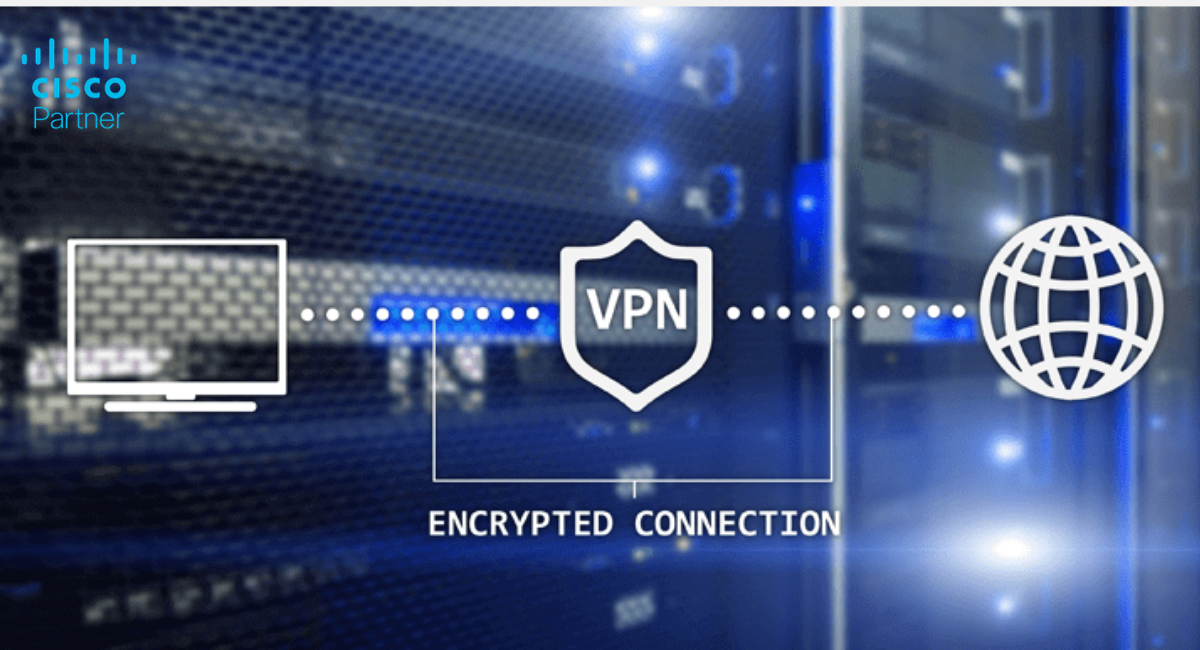
Remote access is another major part of identity-driven control. Meraki Client VPN supports AD-based authentication, which keeps remote access aligned with existing identity rules. For successful VPN integration, correct active directory configuration is required to ensure seamless authentication and directory services.
Remote users log in with their domain credentials as Active Directory users. The MX validates those credentials through the directory and determines group membership so the appropriate policy applies. This pattern makes remote access easier to manage because administrators do not need separate user databases.
Client VPN sessions follow a simple pattern: the VPN gateway receives the login request, validates the username and password, and requires an exact match between the provided credentials and the directory records. It then retrieves group membership from the directory and assigns the correct policy. When users change departments or roles, updated information flows naturally into the VPN environment.
VPN permissions are often controlled through specific AD groups. These are Active Directory groups configured for VPN access control. Only members of the approved groups can establish VPN sessions. This reduces the chance of unauthorized remote access and keeps the environment aligned with identity roles.
Identity problems usually stem from predictable issues. A strong troubleshooting workflow helps teams avoid downtime. For detailed troubleshooting steps and advanced configuration guidance, refer to official Cisco or Microsoft documentation.
Invalid certificates, incorrect names, missing authentication flags, a missing attribute in the certificate, or expired certificates can break directory queries. Confirm that certificates meet AD and Meraki requirements.
If logon auditing is disabled, the MX cannot map users to IP addresses. Verify that all Domain Controllers store the required logon events.
Overlapping group memberships or incorrectly applied policies cause unpredictable behavior. Review group nesting and ensure each group corresponds to the correct Meraki policy.
A reliable Meraki AD integration follows a systematic workflow. During deployment, engineers will need to create necessary Active Directory groups, policies, and configurations to ensure seamless integration and proper access control.
• Verify routing paths to Domain Controllers
• Confirm certificate validity
• Enable logon auditing
• Identify all groups needed for network policies
• If your organization uses AD LDS (Active Directory Lightweight Directory Services), verify compatibility and configuration for directory integration
• Add Domain Controllers to the Meraki dashboard
• Map test groups to temporary policies
• Verify and map the correct active directory attribute names for synchronization and authentication
• Validate authentication on wired, wireless, and VPN connections
• Expand to full production groups
• Review event logs regularly
• Confirm correct policy assignment
• Ensure the presence and accuracy of the following attributes required for authentication and policy assignment
• Perform sample authentication tests for each department
• Periodically review certificates • Audit group and policy changes • Use dashboard analytics to track authentication failures
A strong identity model evolves as environments grow. Meraki AD integration allows organizations to maintain consistency across wireless, wired, and remote access layers. Ongoing management and synchronization of Active Directory objects—such as users, groups, and contacts—are essential for maintaining accurate identity information. With solid preparation and periodic reviews, identity remains accurate and actionable.
Organizations that treat identity as a long-term investment gain stronger reporting, better access control, and fewer operational surprises. A structured strategy reduces risk while creating a more predictable and efficient network environment.
Stratus Information Systems helps organizations build reliable and scalable identity frameworks using Cisco Meraki. From certificate planning and wireless design to AD integration and VPN strategy, our engineers support every layer of the deployment.
If you want to strengthen your Meraki Active Directory authentication or modernize identity controls across your environment, our team can prepare a tailored design plan and provide deployment guidance.