Meraki Z3 Teleworker Gateway: Remote Work Connectivity and Setup Guide
Remote work has become permanent infrastructure. Employees working from home need reliable network connectivity that doesn’t compromise security. Traditional approaches—either allowing unrestricted home internet access or requiring VPN clients on personal devices—create either security risks or user friction.
The Cisco Meraki Z3 teleworker gateway addresses this by providing a dedicated device for home office networking. Rather than relying on VPN software running alongside personal applications, the Z3 provides clean network connectivity designed specifically for business use while isolating home internet traffic. Understanding when and how to deploy Z3 gateways helps organizations support remote workers effectively.
What is the Meraki Z3?
Z3 Architecture
The Meraki Z3 is a small office/home office (SOHO) networking device combining:
Cisco Meraki security appliance functionality
WiFi access point for wireless devices
VPN gateway for secure connectivity
Cloud management through Meraki dashboard
Rather than being a simple WiFi router, the Z3 is a full security appliance in small form factor—suitable for individual home offices.
Key Specifications
Throughput: 300-400 Mbps typical performance
Wireless: 802.11ac (WiFi 5)
Interfaces:
1 WAN port (connects to home internet)
3 LAN ports (for wired devices)
WiFi for wireless
Form factor: Desktop unit, compact design
Power: Single 12V power supply
Management: Cloud-based Meraki dashboard
The Z3 is essentially a compact version of full Meraki deployments, providing enterprise features in home office scale.
Why Remote Workers Need the Z3
Problems with Traditional Remote Access
VPN Client Approach
Adds software to personal computers
Runs alongside personal applications (security risk)
Requires user configuration and troubleshooting
Conflicts with personal VPN or security software
Performance impact on device
Support burden for home user experience
Unrestricted Internet Approach
No protection from home internet threats
Employees’ personal browsing mixed with business
Home WiFi insecurity affects business traffic
No control over home network quality
Z3 Advantages
The Z3 provides:
Dedicated business network – Separate from home internet
Automatic VPN – Z3 handles secure connectivity, no user configuration
Home WiFi separation – Home internet and business traffic isolated
Enterprise security – Same protection as office networks
Simple setup – Plug in and business connectivity works
Better performance – Dedicated device doesn’t compete with home activities
Employees get secure, reliable business connectivity without technical complexity.
Z3 Hardware and Connectivity
Physical Setup
Location placement
Place in home office or central home location
Avoid closets or blocked areas (signal degradation)
Keep away from microwave ovens (interference)
Elevate from floor for better WiFi coverage
Power connection
Plug 12V power supply into outlet
Press power button (if has one)
LED indicators show status
WAN connection
Connect home internet line to WAN port
Z3 auto-detects internet connection
Obtains IP address from home ISP (or static if configured)
LAN connections (optional for wired devices)
Connect desktop computers, printers, etc. to LAN ports
Devices get IP addresses from Z3
Automatic configuration
Connection Flow
Home Internet
↓
[Z3 WAN Port]
↓
Z3 Security Appliance & WiFi
↓
Business VPN Tunnel to Company Network
↓
Company Resources
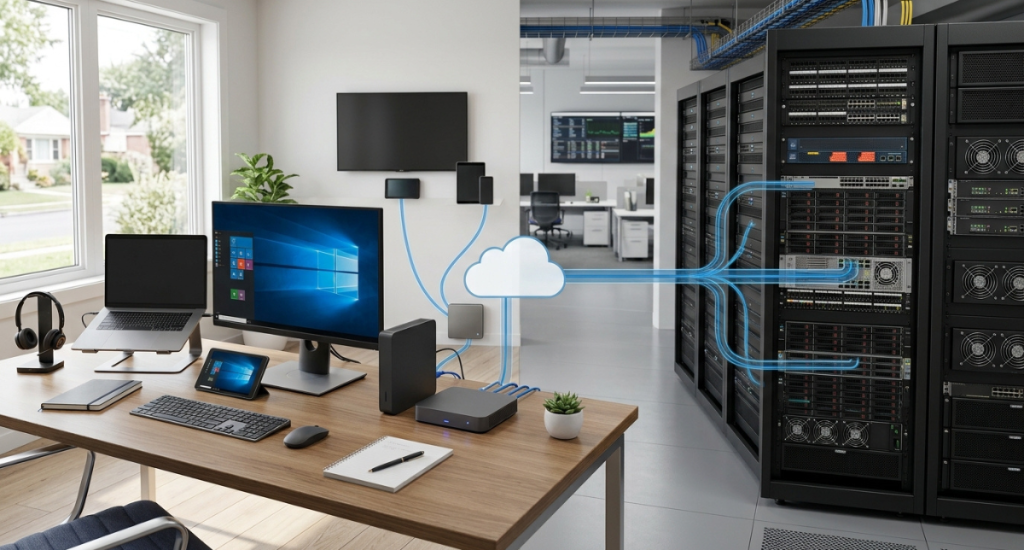
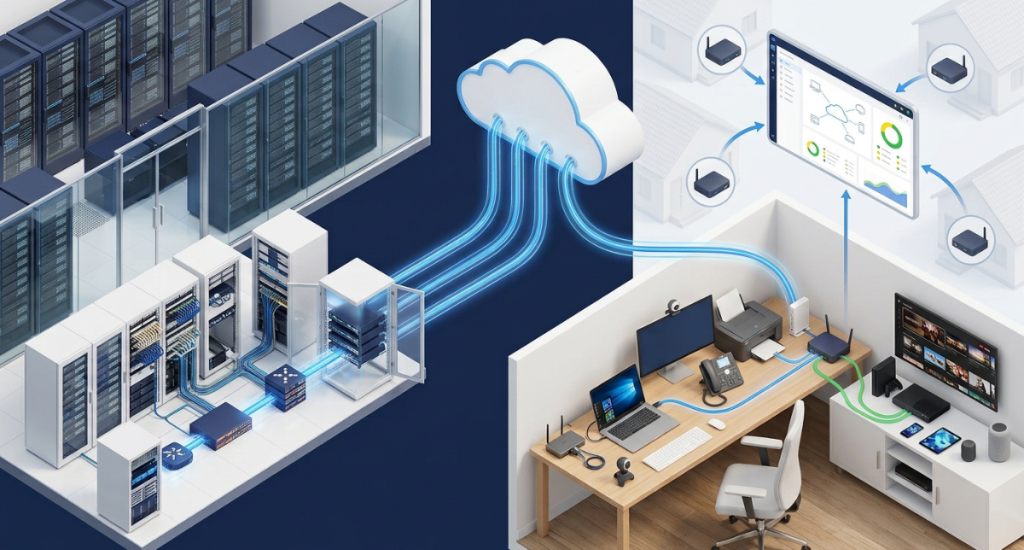
Home internet connects to Z3, which creates secure tunnel to company, isolating business traffic from personal home internet.
Setting Up Z3 for Remote Workers
Pre-Configuration by IT
IT administrators typically:
Create Z3 in Meraki dashboard
Add device serial number
Assign to organization
Configure security policies
Set VPN settings
Generate configuration
Create profile with:
VPN gateway address
Authentication credentials
Security policies
WiFi SSID and password
Ship to employee
Z3 hardware
Configuration guide
Support contact information
Employee Setup
When receiving Z3:
Unbox and identify components
Z3 gateway unit
Power supply
Ethernet cable
Documentation
Choose location
Home office desk
Stable surface
Near where internet enters home
Central location for WiFi coverage
Connect power
Plug power supply into outlet
Connect to Z3 rear panel
LED lights indicate power
Connect to home internet
Plug home internet cable into Z3 WAN port
Z3 auto-detects internet connection
Wait for LED to show connected status (typically 1-2 minutes)
Connect devices
Wired devices: Plug Ethernet cable into LAN port
Wireless devices: Connect to WiFi SSID provided by IT
Organizations with small remote team or heavy tech-savvy users might prefer VPN client cost-effectiveness.
Integration with Company Network
Z3 integrates with existing Meraki infrastructure:
Consistent management – Same Meraki dashboard as office
Unified policies – Same security rules as office
Network visibility – Remote users visible in network analytics
Site-to-site VPN – Z3 can mesh with office Meraki appliances
Reporting – Remote usage included in security reports
This integration creates seamless security whether users are office or remote.
Getting Started with Z3
For organizations considering Z3 deployment for remote workers, Stratus Information Systems provides assessment and deployment services. We help:
Evaluate Z3 vs. VPN client approach for your situation
Design deployment strategy for remote worker base
Configure devices and security policies
Train staff on management and support
Monitor deployment success
The Meraki Z3 represents a modern approach to remote work security—providing enterprise protection without requiring users to manage complex VPN software. For organizations with significant remote workforces, Z3 deployment often delivers better security and support experience than client-based VPN approaches.
Whether you are considering moving to a cloud-hosted solution for the first time or just refreshing old gear, Stratus has the knowledge and expertise to set your organization up for a flawless network deployment.
Thank you!
We are working on your request and we will contact you as soon as possible. Have a nice day!